UI3 doesn't switch to main stream when viewing single camera (Live View and Timeline)

Dec 28, 2018
10
4
United States
Hello, apologies if this has been asked and addressed; if it has, I'd appreciate a link to the thread.

Here's my setup:
Cameras: 12 x Dahua IPC-T5442TM-AS and 1 x IPC-HFW5241E-Z12E
Server:
Hardware: Intel i7-12700, 32GB DDR5 on B760M board.
OS: Windows Server 2025
Blue Iris: v6.0.5.6 and UI3 v323

I have had this setup (with an older computer) for about 4 years and everything worked as expected. Had to rebuild the server last year due to hardware issues. I have continuous + alerts recording on all 13 cameras with main and sub streams configured.

Not sure when exactly this issue started, but, I noticed it this morning - clicking on a camera in UI3 grid view opens the camera but the image quality is blurry. In looking at the properties in UI3, it looks like it's the substream being rendered and not the mainstream. This happens with both live view and timeline view.

Within the BlueIris console, single camera view renders a sharp image and is the main stream (as expected). And so does viewing any recorded clip.

Are there any settings that can be preventing single camera view from switching to main stream via UI3?

Other data points that may be relevant:
  • Testing with a Win 11 device on the same LAN - 1GB3 wired LAN, Chrome and Edge browsers
  • Tried enabling DIrect to wire and with it disabled
  • UI3 profile in the browser is set to inherit all settings.
  • Cameras are set to send H265 streams for both main and substreams to Blue Iris.
  • About this UI in UI3 shows support for H264 and H265
  • With Direct to wire enabled, H265 streams play fine in the browser. With it disabled, the stream defaults to H264.
  • I've tried changing other settings in the BI -> settings -> WebServer -> "Streaming 0" - encoder page to see if it makes a difference.
I read somewhere that this inability to auto switch to main stream was a bug introduced in BI 5.9.9.x. But, not sure if this is accurate. I'd appreciate any and all suggestions and troubleshooting ideas to get this resolved. Thanks!
 
Even though it says H265 is supported, many have seen issues with it.

Try a camera at H264 and see if it goes away with that camera. If so, you know the reason.

There is a thread about it somewhere that I think @bp2008 posted about this issue.
 
I am unaware of any recent bugs that would cause this. The only way I know of to have UI3 get "stuck" with a substream is to restart the camera while UI3 is actively streaming it. At least in the past, Blue Iris would fail to switch to sending the main stream if UI3 requested the video feed too quickly after the camera instance started up.

Other than that, the only reason you should be getting stuck with a sub stream is if UI3 is actually requesting a resolution equal to or smaller than the sub stream resolution. I trust that you don't just have a low resolution streaming profile selected :)

This issue is most likely caused by something in your Blue Iris configuration.

Make sure the recording format is BVR, which is in Blue Iris camera properties > Record tab > File format and compression. Direct-to-disk needs to be enabled also.

Please share some screenshots, including:
  • Stats for nerds panel in UI3 while you're getting the unwanted substream.
  • Camera properties panel in UI3 for an affected camera -- just the top of it, most importantly the "Video", "Main stream", and
    "Sub stream" lines.
  • Blue Iris Status window > Cameras tab (you can shrink the "IP" column so IP addresses are not readable if you want).
 
Try a camera at H264 and see if it goes away with that camera. If so, you know the reason.
Tried this too - and it's still the substream that gets rendered.

I trust that you don't just have a low resolution streaming profile selected
Shouldn't be. I've been testing with the 2160 VBR and 2160 profiles in UI3.

Make sure the recording format is BVR, which is in Blue Iris camera properties > Record tab > File format and compression. Direct-to-disk needs to be enabled also.
Yes, both of these are set correctly. And this issue happens with all 13 cameras.

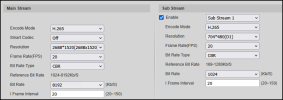
Camera stream resolution settings
1778529956065.png

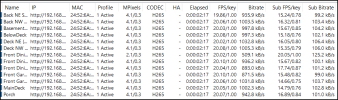
BI -> Status -> Cameras
1778530450822.png

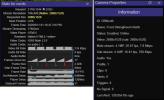
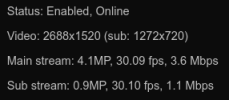
Camera Properties and Stats for Nerds
1778530895309.png
 
Ok there is something strange going on.

The camera config looks fine, and the BI Status > Cameras looks fine (except that sub stream frame rates are mostly lower than the main stream, but I doubt that is related to this resolution issue).

One problem is, it appears Blue Iris is reporting that the sub stream resolution is the same as the main stream resolution (revealed via Camera Properties window in UI3). But for some reason it has the correct sub stream frame rate and bit rate. So Blue Iris is reporting metadata wrong in a way I do not recall ever seeing before. But that isn't the only problem because Blue Iris is also sending you the sub stream via direct to wire when it should have sent the main stream via direct to wire. BI should have only sent the sub stream if UI3 had requested a very low resolution, but UI3 actually asked for a resolution exactly matching the main stream's resolution so it definitely should have been sent the main stream.

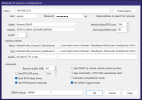
Can you do a screenshot of the BI camera IP settings where the video stream paths are entered? (BI camera settings > Video > Network IP > Configure)

Also figure out which user you are using to log in with UI3, and look at that user configuration in Blue Iris Settings > Users. Is the "Bandwidth limit" box checked? That can apply unexpected changes to your streaming.

But I am getting the feeling you might have to contact BI support about this issue.
 
Thanks @bp2008. Here's the network settings for the same camera that I pulled the other screenshots for. All cameras are configured identically.
1778533667395.png

I don't have bandwidth limits specified for any of the users.
 
  • Like
Reactions: bp2008
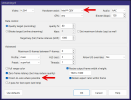
Here's the Streaming 0 profile settings. Only changes from Default are marked by arrows. I've tried multiple combinations here - specifying a "bitrate target", disabling "direct-to-wire", disabling "hardware assist", disabling "resize output frame", etc. None of them seem to make a difference. I even restarted the BI service after saving each change.
1778533944985.png
 
  • Like
Reactions: bp2008
Same issue on BI 6.0.7.4
However on different 6.0.4.4 UI3 solo cam mainstream working. (And UI3 cam properties correct MP main vs sub)
Both systems have Hikvision cams with same main and sub config - /Streaming/Channels/101 + /Streaming/Channels/102
 
Did you get anywhere with this? I'm having the identical issue.

If you look at your camera's video tab you'll likely see under image format the resolution of your main stream. This is wrong. Try clearing resolution + un-checking anamorphic (Force size). Then before saving OK, go into camera configure and temporarily remove the substream. Save and camera should re-connect with only main active. Then go back and add the substream back. Then if you review video tab the image format the resolution should be set at proper substream resolution and BI automatically re-enabled anamorphic. Then UI3 camera properties should show MP difference between main and sub. And mainstream should toggle when solo cam.

1781034000636.png
 
  • Like
Reactions: MediocreFred
If you look at your camera's video tab you'll likely see under image format the resolution of your main stream. This is wrong. Try clearing resolution + un-checking anamorphic (Force size). Then before saving OK, go into camera configure and temporarily remove the substream. Save and camera should re-connect with only main active. Then go back and add the substream back. Then if you review video tab the image format the resolution should be set at proper substream resolution and BI automatically re-enabled anamorphic. Then UI3 camera properties should show MP difference between main and sub. And mainstream should toggle when solo cam.

View attachment 244751
@TSAN - WOW! That fixed it. Had to do this for every one of my cameras. THANK YOU!!! This has had be stumped for almost a year - ever since I rebuilt the BlueIris server on new hardware and ported settings over.
 
  • Like
Reactions: TSAN
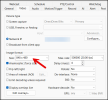
@TSAN - while I do see UI3 picking up mainstream now when in solo camera mode, the camera video settings seem incorrect. I cleared the resolution (image size) as you'd suggested. When I removed the substream, the image size got automatically set to match what is defined in the camera's mainstream (2688x1520). After I added substream1 back in and saved and the camera restarted, the image size has changed to 848x480 which doesn't match either the mainstream's resolution or substream1's resolution as defined in the camera. My camera settings for mainstream and substream1 are in a screenshot earlier in this thread. Should I edit the image size manually and set it to match the camera's mainstream resolution? If this setting doesn't have any impact on the quality of what gets recorded (direct to disk enabled) or streamed (direct to wire enabled), I'll ignore it. Thanks again!

Edited to add: Manually setting the image size to match the mainstream resolution reverts to the issue I had. Solo cam in UI3 is back at substream1. I'll leave it at the 848x480 that it was auto-set to. It is a little concerning that the image size doesn't match what the camera is sending. Perhaps, I don't understand what this setting is for (?)
1782694840119.png
 
Last edited:
To the best of my knowledge that setting has nothing to do with UI3, that setting applies to the multicamera view in the BI console window only!

If you read the help for the screen it says the following

Image Format
In the case of a Network IP camera, the image size and max frame rate are determined for you based on what the camera is sending to Blue Iris. If these are not as you expect, they
need to be set in the camera’s browser interface directly. In some cases, there may be parameters as part of the video URL which control these settings however.
 
Edited to add: Manually setting the image size to match the mainstream resolution reverts to the issue I had. Solo cam in UI3 is back at substream1. I'll leave it at the 848x480 that it was auto-set to. It is a little concerning that the image size doesn't match what the camera is sending. Perhaps, I don't understand what this setting is for (?)

Here's what is going on:

IP camera sub streams are usually at an incorrect aspect ratio such that if the video is played without scaling, it looks squished. Anamorphic scaling is required in order to make it look correct. So when Blue Iris discovers a sub/main stream relationship for the first time, it automatically configures the Image format > Size and Anamorphic settings to stretch the sub stream to more-closely match the aspect ratio of the main stream. The size it computed gets automatically inserted into the Size box.

Somewhere along the way, your Size values got changed accidentally to the main stream resolution. Then Blue Iris began thinking your sub stream resolution was the same as your main stream resolution, and unexpected behavior issues come with that.
 
We don't really know when or how the issue occurred but I think it is almost certainly a consequence of running a buggy version of Blue Iris at some point. Thing is I personally run most BI releases at least briefly and it hasn't happened to me.
 
  • Like
Reactions: Flintstone61