Switching to new PC and STRUGGLING....

dhendriksen

Young grasshopper
Jul 9, 2019
45
8
Lehi, UT
So, I decided to get a new PC to run BlueIris. The old one was, well, getting old and I had a chance to upgrade. Anyways, I'm really struggling here. I'm typically a Mac user, and so there's a strong potential for user error here but hoping you can point me in the right direction.

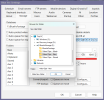
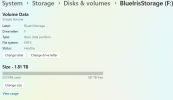
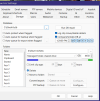
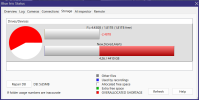
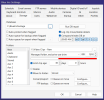
I'm having an issue where it's saying the drive is overallocated. I exported my settings from the old machine, and imported them in to the new one. I added a new Seagate Skyhawk drive, configured in Windows to be drive F:/, and pointed it to that for storage. It's a 2TB drive. As you can see I've pointed it to there, and there is 1.81TB free.

Any clue while I'm getting these errors about being overallocated?
 

Attachments

  • Screenshot 2026-06-14 112551.png
    Screenshot 2026-06-14 112551.png
    50.5 KB · Views: 16
  • Screenshot 2026-06-14 112627.png
    Screenshot 2026-06-14 112627.png
    78.2 KB · Views: 16
  • Screenshot 2026-06-14 112700.png
    Screenshot 2026-06-14 112700.png
    83.3 KB · Views: 16
You are allocating the entire drive, not good!, BI does manage the space, but it needs a bit of overhead to do its work, there will be times when it may temporarily use more than the allocated storage, I would suggest that you reduce space to no more than 1700
 
  • Like
Reactions: TonyR
Also, are you aware of having Limit Clip Age checked? Typically if you are using the whole of a drive (whole minus overhead, as above), I would think you would leave this off and use as much space as is available.
 
You are allocating the entire drive, not good!, BI does manage the space, but it needs a bit of overhead to do its work, there will be times when it may temporarily use more than the allocated storage, I would suggest that you reduce space to no more than 1700
I even tried setting it at 1000 and get the same message.
 
Also, are you aware of having Limit Clip Age checked? Typically if you are using the whole of a drive (whole minus overhead, as above), I would think you would leave this off and use as much space as is available.
Yeah, I’ll get that adjusted once I get past hurdle number 1 which is the space issue. I’ve tried anything and everything I can think of but that message doesn’t go away.
 
I had this happen to me and found i had another Old CAM that also I had allocated to the same drive/space. Check your other CAMs...

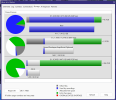
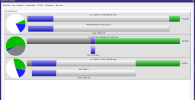
Also look at your Logs/Storage (Charts), it will give you a better picture of your CAM/Drive allocations:

1781466133842.png

HTH
 
I had this happen to me and found i had another Old CAM that also I had allocated to the same drive/space. Check your other CAMs...

Also look at your Logs/Storage (Charts), it will give you a better picture of your CAM/Drive allocations:

View attachment 245023

HTH
Thank you, but this is a fresh installation. Was working flawless on my old machine. Got this new computer, added the new drive, installed Blue Iris and upgraded the license, imported the export from my old computer and have this situation.
 
  • Like
Reactions: David L
But what version was the "old" BI?

From BI's built-in "Help":

"Managed folder, exclusive-use drive": This setting informs the software to expect only Blue Iris related files on the drive and to throw appropriate errors or to run appropriate repair operations if other files are detected. A feature soon may be added to automatically maximize the use of a drive, but caution should still be taken not to over-allocate the drive.

Your 2TB drive formats using NTFS leaving 1.81TB free BUT.....you have 4 other folders on that "F" drive.
 
when you import /export your settings you may also have brought over your allocations for the drive letters.
you may have to change the storage allocations unless you used exactly the same devices.
i would run windows and storage on diff drives. then if you have to format the storage drive you wont lose your Blue iris/windows drive.
1781470421086.png
when i took the Seagate 8TB out and added another WD 8TB with data on it, i got an "overallocation" warning
Because the WD 8TB had the same Drive letter as the old one.
The drive only had about 700GB free space, so Blue iris thinks, in terms of what free space is available when you assign it a storage value.
So when I chose 4500 GB allocation to drive Y:\ blue iris flagged it overallocated because it can only see the free space of 700GB.
And blue iris was being told to use the same storage allocation information as the old drive letter.
Which was already configured /populated with Aux1, Aux2, Aux3, Aux4.
 
Last edited:
  • Like
Reactions: David L
When made another BI machine from parts, of old BI machines. I got over allocation warnings on 1 of the 2 drives.
I formatted the old NVR drive because of course its volume was written in Linux.
then to solve my problem I just wiped/ formatted the other 5Tb drive to get rid of the warning.
 
  • Like
Reactions: David L
Run database repair, see if that helps.
I have done this, many times.
But what version was the "old" BI?

From BI's built-in "Help":

"Managed folder, exclusive-use drive": This setting informs the software to expect only Blue Iris related files on the drive and to throw appropriate errors or to run appropriate repair operations if other files are detected. A feature soon may be added to automatically maximize the use of a drive, but caution should still be taken not to over-allocate the drive.

Your 2TB drive formats using NTFS leaving 1.81TB free BUT.....you have 4 other folders on that "F" drive.
All the folders are empty, and all related to Blue Iris. As you can see from the one screenshot, that is the available amount. I can set that value to ANYTHING, and it still provides this message.
 
e Y:\ blue iris flagged it overallocated because it can only see the free space of 700GB.
And blue iris was being told to use the same storage allocation information as the old drive letter.
Which was already configured /populated with Aux1, Aux2, Aux3, Aux4.
OK...so, do you have a suggestion for how I can fix this? It's a brand new computer with nothing on it except BlueIris. It has a fresh drive with this folder designed as drive F:/

Please forgive my lack of knowledge, I'm not a PC guy and definitely not a BlueIris expert.
 
  • Like
Reactions: Flintstone61
I figured it out! I don't feel like that was very intuitive, but user error as I suspected.

If anyone else runs in to this, all the folders listed have a size allocation. Those together can not add up to larger than the size of the drive. I'd never looked at those other folders.

For my edification, what percentages of available space should I make free for those different folders?
 
  • Like
Reactions: CCTVCam and David L
Run database repair, see if that helps.
That could actually rectify the issue, I wonder if it will
I figured it out! I don't feel like that was very intuitive, but user error as I suspected.

If anyone else runs in to this, all the folders listed have a size allocation. Those together can not add up to larger than the size of the drive. I'd never looked at those other folders.

For my edification, what percentages of available space should I make free for those different folders?
doesn't matter as long as they add up to about 85% of the total drive space.
then check your storage graph and see how this looks.
1781473857351.png
 
  • Like
Reactions: David L
If you were not using the other folders before you can make them zero and allocate that space to "new"
I just use the Aux folders to split up the work between two drives.
 
I figured it out! I don't feel like that was very intuitive, but user error as I suspected.

If anyone else runs in to this, all the folders listed have a size allocation. Those together can not add up to larger than the size of the drive. I'd never looked at those other folders.

For my edification, what percentages of available space should I make free for those different folders?
Read and study the Blue Iris help file, it's very helpful.
 
I leave just a very small space at the end, but yes everything must total less than the total drive capacity.

That's usually where the pie chart comes in as the most helpful as you can see all the individual allocations.

Also, didn't notice if it was the case in your case, but the drive you're saving footage to should be a dedicated footage drive. Don't use the same drive as your OS / App / BI are installed on.