
Maybe I should change my handle to " Das tinkerer" or "Gebutton Gepusher" or "Krashin Komputerz" ( maybe Putzin Heimer?)
So with Version 6's new AI mode, and using a heavy dose of it. I have motion induced CPU fan roller-coaster going on randomly ( annoying)
So a week ago I tried disabling intel Speed step and intel turbo boost in the Bios.( fan noise)
This Dell 3630 has an aggressive fan curve compared to my Optiplex 9020 which is quite steady.
Anyway.....to see how BI performs on a steady clock with no Fan R.P.M. spiking and sagging ( computer is in my bedroom)
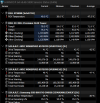
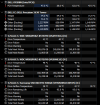
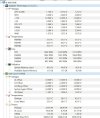
But it kept CPU clocks @ 3.19 GHZ.
Seemed a bit laggy in some instances, but not horrible.
So now I just google searched and got some more hits... first i landed here.
Steps via Windows Registry (For Processor Performance Boost Mode)
If you have a newer Windows OS update installed, setting the maximum state to 99% might not work. Instead, you can unhide a hidden power setting using the Windows Registry:
So then I asked it what does this registry string do? ( the part my Registry DOES have)
Computer\HKEY_LOCAL_MACHINE\SYSTEM\CurrentControlSet\Control\Power\PowerSettings\54533251-82be-4824-96c1-47b60b740d00
This registry path (SUB_PROCESSOR) is the master container for Processor Power Management (PPM) settings in Windows. [1, 2, 3]
By default, many of its sub-settings (like processor boost mode or minimum/maximum CPU states) are hidden in the Windows Control Panel. Changing their Attributes key from 1 to 2 makes these advanced settings visible. [1, 2, 3, 4]
Some of the most common hidden features you can unlock within this registry location include:
Are you trying to reduce fan noise and thermals, or are you trying to maximize your CPU performance? Let me know, and I can give you the exact registry keys to edit.
So long and short of it. I rebooted and went into the BIOS and left Intel Speed step OFF, but re-enabled Intel Turbo Boost.
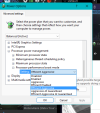
then after modifying the attribute DWORD it made the new Menu item appear.
" Processor Performance Boost Mode"
AI suggested that i try the" Efficient aggressive" setting to manage fan spiking.
Anyway my Cpu Clock isnt spiking and sagging, its staying about 4.05 GHZ and Fan are staying at 1 speed now.
and Instead of saving electricity, I'm saving my sanity.
I haven't the unmitigated Gall to select any other boost modes at this late hour.
I think I hear birds chirping FFS.
So with Version 6's new AI mode, and using a heavy dose of it. I have motion induced CPU fan roller-coaster going on randomly ( annoying)
So a week ago I tried disabling intel Speed step and intel turbo boost in the Bios.( fan noise)
This Dell 3630 has an aggressive fan curve compared to my Optiplex 9020 which is quite steady.
Anyway.....to see how BI performs on a steady clock with no Fan R.P.M. spiking and sagging ( computer is in my bedroom)
But it kept CPU clocks @ 3.19 GHZ.
Seemed a bit laggy in some instances, but not horrible.
So now I just google searched and got some more hits... first i landed here.
Steps via Windows Registry (For Processor Performance Boost Mode)
If you have a newer Windows OS update installed, setting the maximum state to 99% might not work. Instead, you can unhide a hidden power setting using the Windows Registry:
- Press Windows Key + R, type regedit, and hit Enter.
- Navigate to: HKEY_LOCAL_MACHINE\SYSTEM\CurrentControlSet\Control\Power\PowerSettings\54533251-82be-4824-96c1-47b60b740d00\be337238-0d82-4146-a960-4f37b9d47c46
- Double-click the Attributes DWORD on the right and change the Value Data from 1 to 2.
- Return to your Power Options -> Change advanced power settings.
- Under Processor power management, you will now see Processor performance boost mode.
- Change the setting to Disabled to turn off Turbo Boost. (Change it back to Aggressive or Enabled to turn it back on). [1, 2, 3
So then I asked it what does this registry string do? ( the part my Registry DOES have)
Computer\HKEY_LOCAL_MACHINE\SYSTEM\CurrentControlSet\Control\Power\PowerSettings\54533251-82be-4824-96c1-47b60b740d00
This registry path (SUB_PROCESSOR) is the master container for Processor Power Management (PPM) settings in Windows. [1, 2, 3]
By default, many of its sub-settings (like processor boost mode or minimum/maximum CPU states) are hidden in the Windows Control Panel. Changing their Attributes key from 1 to 2 makes these advanced settings visible. [1, 2, 3, 4]
Some of the most common hidden features you can unlock within this registry location include:
- Processor Performance Boost Mode: Allows you to control or disable CPU turbo boost to reduce heat and fan noise.
- Maximum/Minimum Processor State: Sets the ceiling and floor for CPU frequency.
- Processor Core Parking: Toggles whether the OS turns off idle CPU cores to save power. [1, 2, 3, 4, 5, 6]
Are you trying to reduce fan noise and thermals, or are you trying to maximize your CPU performance? Let me know, and I can give you the exact registry keys to edit.
So long and short of it. I rebooted and went into the BIOS and left Intel Speed step OFF, but re-enabled Intel Turbo Boost.
then after modifying the attribute DWORD it made the new Menu item appear.
" Processor Performance Boost Mode"
AI suggested that i try the" Efficient aggressive" setting to manage fan spiking.
Anyway my Cpu Clock isnt spiking and sagging, its staying about 4.05 GHZ and Fan are staying at 1 speed now.
and Instead of saving electricity, I'm saving my sanity.
I haven't the unmitigated Gall to select any other boost modes at this late hour.
I think I hear birds chirping FFS.
Last edited: