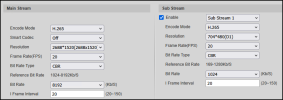
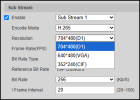
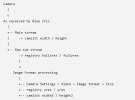
Here's what is going on:
IP camera sub streams are usually at an incorrect aspect ratio such that if the video is played without scaling, it looks squished. Anamorphic scaling is required in order to make it look correct. So when
Blue Iris discovers a sub/main stream relationship for the first time, it automatically configures the
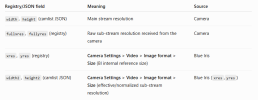
Image format > Size and
Anamorphic settings to stretch the sub stream to more-closely match the aspect ratio of the main stream. The size it computed gets automatically inserted into the
Size box.
Somewhere along the way, your
Size values got changed accidentally to the main stream resolution. Then Blue Iris began thinking your sub stream resolution was the same as your main stream resolution, and unexpected behavior issues come with that.
Just to add a little background from a couple of email exchanges I had with Ken over the past year...
One thing that wasn't immediately obvious to me is that
Camera Settings > Video > Image format > Size is more than just a display of the camera's configured sub stream.
For dual-stream cameras, Blue Iris uses this value as
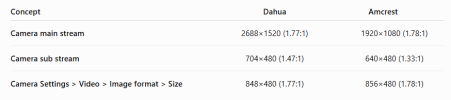
an internal reference size. If the camera's sub stream aspect ratio doesn't match the main stream, BI automatically enables the Anamorphic option and adjusts the displayed width so the sub stream has the same aspect ratio as the main stream. For example, one of my Dahua cameras outputs a 704x480 sub stream, but BI displays it as 848x480 because that is the anamorphically corrected equivalent. The camera is still sending 704x480.
Ken further explained that
this Image format size is ALSO used when Blue Iris decides which stream should satisfy an image request. Blue Iris appears to internally normalize the incoming streams using this size and aspect ratio, and if the requested image size is at or below this threshold, BI can use the sub stream; larger requests require the main stream. That seems consistent with what
@bp2008 is describing here regarding UI3's stream selection.
That means
this same setting has effects outside of live viewing. It influences the behavior of HTTP image extraction, and Ken mentioned that AI DAT images are resized independently (to roughly 480p) so they don't become excessively large.
So this field ends up affecting several internal BI decisions, not just how the Video tab is populated.
One additional thought (my speculation, not something Ken explicitly stated): this architecture may also be why stream switching in the BI timeline is usually so seamless. Since BI has already normalized the streams to a common aspect ratio and working geometry, it can switch between sub- and main-stream frames without the obvious stretching or width changes you'd expect if it simply swapped between the camera's native 704x480 and 2688x1520 images. The net effect would be what we actually see -- the avoidance of visible discontinuities during timeline playback (disregarding text overlays, which do change with the source stream).
That same behavior may also explain why mixed-stream animated GIFs generated from BI clips with my PowerShell utility,
BI_gif_tool.ps1, tend to transition smoothly between sub- and main-stream frames. The frames are already normalized before they're handed off for processing.
It took me a while to realize that
Image format > Size isn't simply reporting what the camera is sending; it's an internal reference size that Blue Iris appears to use in several places.
So my takeaway is that the
Image format > Size setting is really a central piece of BI's dual-stream architecture, rather than simply a display of the camera's configured sub-stream resolution.